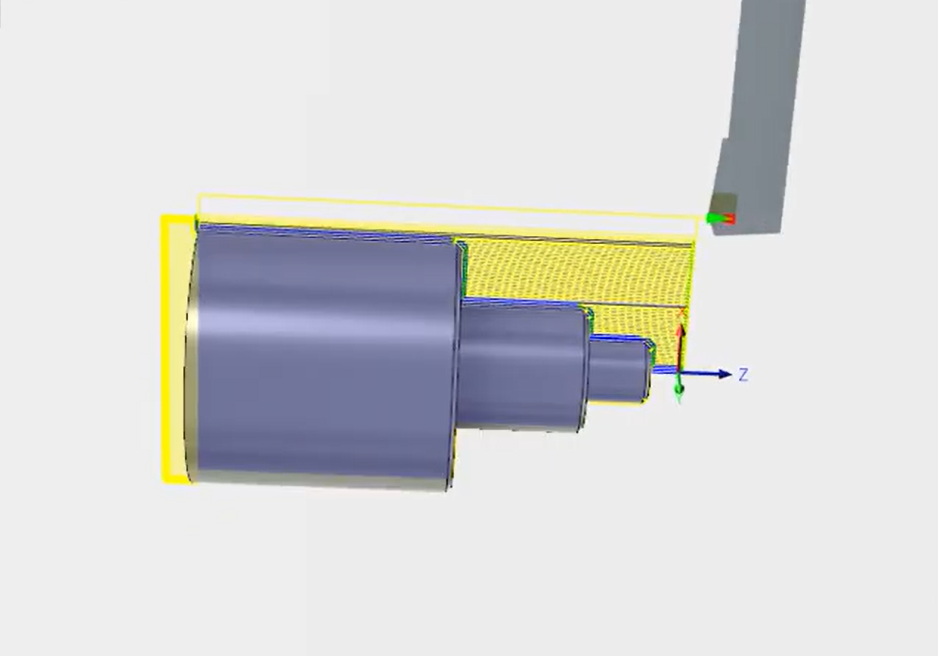
CNC Simulation of Milling, Step Turning, Drilling Operation in Fusion 360
Team EveryEng
Mechanical Engineering
$ 5
Beginner course for learners
CNC Simulation of Milling, Step Turning, Drilling Operation in Fusion 360
Trainers feedback
4
(42 reviews)
Team EveryEng
Mechanical Engineering
Course type
Watch to learn anytime
Course duration
18 Min
Course start date & time
Access anytime
Language
English
This course format through pre-recorded video. You can buy and watch it to learn at any time.
Why enroll
Throughout the course, participants will have the opportunity to apply their knowledge through hands-on exercises and real-world machining simulations. By the end of the course, participants will be proficient in using Fusion 360 to simulate milling, drilling, and step turning operations, enabling them to optimize CNC machining processes, reduce errors, and improve overall productivity.
Course content
The course is readily available, allowing learners to start and complete it at their own pace.
CNC Simulation of Milling, Step Turning, Drilling Operation in Fusion 360
3 Lectures
18 min
Step Turning Operation in Fusion 360
5 min
Milling Operation in Fusion 360
8 min
Drilling Operation in Fusion 360
5 min
Course details
This comprehensive course on CNC simulation of milling, drilling, and step turning operations in Fusion 360 is designed to equip participants with the essential skills and knowledge needed to efficiently program and simulate CNC machining processes. Through a combination of theoretical learning and practical exercises, participants will gain a thorough understanding of Fusion 360's capabilities for simulating milling, drilling, and step turning operations.
Course suitable for
Aerospace Automotive Mechanical
Key topics covered
Why people choose EveryEng
Industry-aligned courses, expert training, hands-on learning, recognized certifications, and job opportunities—all in a flexible and supportive environment.
- Industry Veteran
- Trainer Review

Team EveryEng
Mechanical Engineering
Questions and Answers
A: CNC simulation in Fusion 360 is a virtual process that replicates the actual machining operation to visually verify and analyze the toolpaths before running them on a physical CNC machine. It helps identify potential collisions, errors, and inefficiencies in the milling process, ensuring the safety of equipment and operators while optimizing machining time. This validation reduces material waste and costly machine downtime. For more details, you can refer to Autodesk's official guide on CAM simulation: https://help.autodesk.com/view/fusion360/ENU/?guid=GUID-D5E8F9FF-6DFB-4F60-982A-217CF4A5A3CD
A: To create a step turning operation simulation in Fusion 360, you generally follow these steps: 1) Design the part or import a CAD model. 2) Set up the lathe workspace and define the stock material. 3) Select the turning operation - for step turning, define the specific profiles and diameters where the lathe removes material in steps. 4) Assign appropriate cutting tools like turning inserts. 5) Generate the toolpaths based on the operation parameters. 6) Run the simulation to visualize material removal and check for errors or collisions. This stepwise approach ensures accurate representation and optimization of the turning process. More info can be found at https://www.autodesk.com/products/fusion-360/blog/lathe-turning-part-programming/
A: Setting up a drilling operation simulation in Fusion 360 involves several key steps: first, selecting the hole features or drilling points on your model; next, defining the drilling tool with correct diameter and specifications; then, specifying drilling parameters such as speed, feed rates, and peck drilling if necessary; finally, generating and running the simulation to inspect chip removal and detect collisions with clamps or jaws. It's important to also configure the stock properly to match real-world material dimensions. Running the simulation verifies the toolpaths and optimizes the drilling process prior to actual machining. Autodesk’s documentation on drilling operations provides an in-depth explanation: https://help.autodesk.com/view/fusion360/ENU/?guid=GUID-F6F2B143-E3FC-4BDD-9A8F-62EA5D1A2555
A: Common errors during CNC milling simulation include toolpath collisions with the stock or fixtures, tool overtravel, gouging, and invalid toolpaths due to improper parameter settings. In Fusion 360, these issues can be resolved by: 1) Adjusting the stock setup to accurately represent clamps and material boundaries. 2) Fine-tuning clearance heights and retract moves to prevent collisions. 3) Verifying cutting tool selection and dimensions for compatibility with the geometry. 4) Using the 'Toolpath Validation' feature to detect gouges. 5) Modifying feeds and speeds to appropriate values for the material and tooling. Careful setup and iterative simulation help to minimize these errors before machining. See https://knowledge.autodesk.com/support/fusion-360/learn-explore/caas/CloudHelp/cloudhelp/ENU/Fusion-360-Toolpath-Validation/files/GUID-448E7DFD-5D12-4CE4-90BA-4108EC1D6AE2-htm.html for more insights.
A: Fusion 360 supports multi-axis milling simulation by allowing users to generate toolpaths that move not only in the standard X, Y, and Z axes but also rotate around additional axes to access complex geometries. The software simulates the actual movement of the tool relative to the part, accounting for factors like tool orientation and machine kinematics. Fusion 360’s simulation environment visualizes the tool engagement with the workpiece, enabling detection of collisions and verifying the exact material removal in 3D space. This capability is essential for complex aerospace or mold-making applications where 5-axis machining is common. Detailed information on 5-axis machining is available here: https://help.autodesk.com/view/fusion360/ENU/?guid=GUID-6C677D85-064F-4D8C-8E1B-97C0172E0C7A
A: Post-processing in Fusion 360 refers to the step where the verified toolpaths from the simulation are converted into G-code or other machine-specific code that CNC machines can interpret. After simulation ensures that the operations are correct and safe, post-processing generates the final instructions tailored to the specific control system of the machine tool. This includes adapting to the machine’s capabilities, coordinate systems, and syntax requirements. Without proper post-processing, even a flawless simulation won't translate into a successful machining operation. Fusion 360 provides customizable post-processors that can be edited for different machines. More info about post-processing can be found at https://help.autodesk.com/view/fusion360/ENU/?guid=GUID-60F0CEB0-93A9-4252-8770-04EA29A8C842
A: Verifying and avoiding collisions in Fusion 360 CNC simulation involves running a detailed simulation of the toolpath that visually checks whether the cutting tool or tool holder intersects with the stock, fixtures, or machine components. During simulation, the software will highlight collision points or gouging areas. Users should carefully inspect these areas and modify toolpaths, adjust clearance heights, or reposition clamps and stock setups to eliminate the risk. Additionally, employing proper tool orientation and conservative feed rates reduces collision risks. Fusion 360’s 'Collision Detection' feature is pivotal in identifying these problems before actual machining, thereby protecting the equipment and material. See https://knowledge.autodesk.com/support/fusion-360/learn-explore/caas/CloudHelp/cloudhelp/ENU/Fusion-360-Simulating/files/GUID-96806E89-4C2A-4E1E-BF9A-987A9D693E12-htm.html for detailed guidance.
A: Best practices for setting up stock material in Fusion 360 include accurately specifying the dimensions, shape, and orientation of the raw material so that the simulation reflects real-world conditions. For milling, define the stock size slightly larger than the final part to allow for machining allowances. For turning, set the stock as cylindrical material matching the bar or blank size. Also, position the stock relative to the work coordinate system properly to avoid toolpath misalignment. Incorporate fixture and clamp geometry if possible to detect collisions. Applying these practices ensures realistic simulation results and prevents errors during actual machining. Detailed procedures can be found in Autodesk's documentation: https://help.autodesk.com/view/fusion360/ENU/?guid=GUID-CAF3C6FF-591A-4DA1-8FB7-99371899AF6A
A: Interpreting CNC simulation results in Fusion 360 involves analyzing the visual material removal, toolpath motion, and any alerts or warnings generated. Check that the tool removes the material uniformly without gouging the part or cutting into fixtures. Pay close attention to flagged collisions or areas where the tool might overextend. Look for unexpected tool retracts or air cuts that may waste time. Examine the feed and spindle parameters for possible optimization. If the simulation shows errors, adjust toolpaths, tool geometry, or machining parameters accordingly and re-simulate until the process appears smooth and error-free. The simulation timeline and toolpath animation speed control help diagnose specific motion issues. Autodesk’s learning resources on simulation interpretation can provide additional guidance: https://knowledge.autodesk.com/support/fusion-360/learn-explore/caas/CloudHelp/cloudhelp/ENU/Fusion-360-Simulating/files/GUID-1E7A6679-DDFD-4C93-840C-571B1732F38E-htm.html
More from Same Author
- Technical Courses
- Articles

4 (42)
1333
36
E-Learning
Unlimited access
E-Learning
Unlimited access
Pre-recorded videos

4 (42)
683
11
E-Learning
Unlimited access
E-Learning
Unlimited access
Pre-recorded videos

4 (42)
887
17
E-Learning
Unlimited access
E-Learning
Unlimited access
Pre-recorded videos
Earning and Growth option in same Industry Domain
- Pre-recorded
- Online live session
- Offline
- Articles
4 (42)
603
1
E-Learning
Unlimited access
E-Learning
Unlimited access
Pre-recorded videos
4 (42)
1785
8
E-Learning
Unlimited access
E-Learning
Unlimited access
Pre-recorded videos
4 (42)
3548
22
E-Learning
Unlimited access
E-Learning
Unlimited access
Pre-recorded videos
More Training & Development option to expand your reach
- Technical courses
- Soft-skills courses
- Seminars
- Articles & Blogs

4
175
Online
Live courses
December 21
1.5 Hrs
Beginner
Online
Live courses
Interacting with trainer
836
3
Online
Live courses
December 31
160 Hrs
Advanced
Online
Live courses
Interacting with trainer

92
Online
Live courses
January 8
9 Hrs
Beginner
Online
Live courses
Interacting with trainer